On this page
- Why Is My Fire TV Stick Running Slow?
- Restart Your Fire TV Stick First
- Restart or power-cycle the stick
- Free Up Storage Space
- Uninstall the apps you don't use
- Clear App Cache to Speed Things Up
- Clear the cache app by app
- Stop Background Apps from Eating Memory
- Force stop the apps you're done with
- Check Your Network Before You Blame the Stick
- Can a Lighter Media Player Make a Slow Stick Faster?
Is your Fire TV Stick running slow — menus that take seconds to react, apps stuck on their splash screens, a remote that feels a beat behind? That's usually fixable at home in about half an hour. The five fixes below cover the usual causes: full storage, months of built-up cache, background apps and a weak Wi-Fi signal.
Why Is My Fire TV Stick Running Slow?
Fire TV Sticks are small, affordable devices with modest hardware, so it doesn't take much to drag them down. The usual suspects are storage that's nearly full, app cache that's grown for months, more installed apps than the stick can comfortably handle, apps left running in the background, and a weak Wi-Fi signal. Slow looks like menus that hesitate, apps that hang before they open, and button presses that register late.
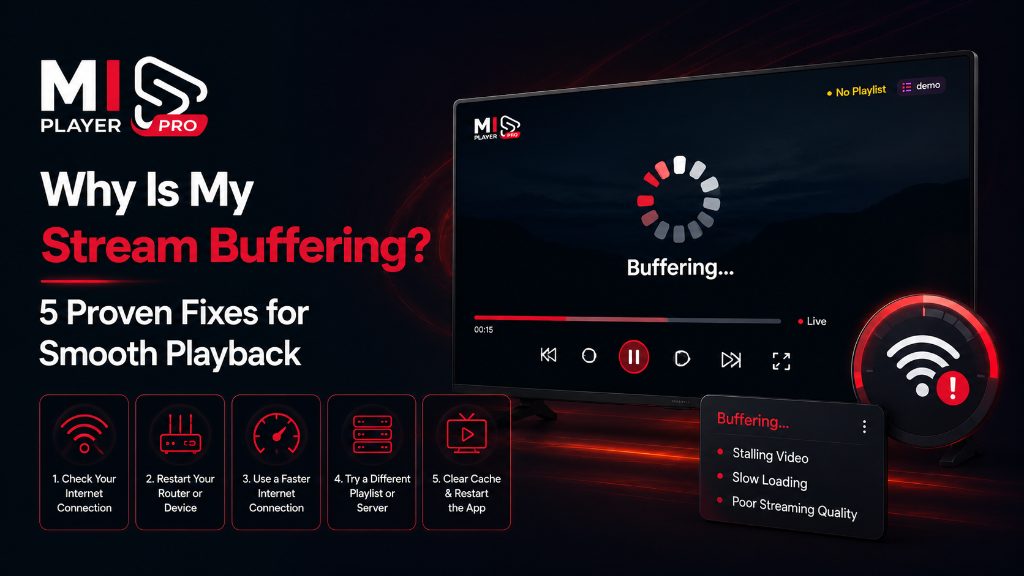
One check before you start: if playback stutters but the menus are still quick, that's a streaming problem rather than a device problem. Our guide to fixing buffering covers that case instead.
Restart Your Fire TV Stick First
Start here because it's free and takes two minutes. A stick that hasn't been switched off in weeks is holding apps in memory, and a fresh boot clears all of that out.
Restart or power-cycle the stick
3 steps- On the stick, go to Settings → My Fire TV → Restart and confirm. Wait for the boot to finish — don't pull the plug mid-restart.
- If the menus are too laggy to navigate, power-cycle instead: unplug the stick from the TV or its power adapter, wait 60 seconds, then plug it back in.
- When it's back up, try the menus again. Still slow? Move on to storage.
Free Up Storage Space
Fire TV Sticks ship with a small amount of internal storage, and not all of it is yours to use — Amazon's device model list shows some 8 GB models have only around 4.5 GB free out of the box. A couple of large apps can fill that, and a nearly full stick is the top cause of laggy menus. Clearing room takes five minutes.
Uninstall the apps you don't use
4 steps- Go to Settings → Applications → Manage Installed Applications to see how much storage each app uses.
- Look for big games and duplicate streaming apps you haven't opened in months — those are the usual space hogs.
- Select an app you don't need and choose Uninstall. Keep the ones you actually use.
- Check your free-storage figure before and after. Even clearing a couple of gigabytes can noticeably speed up the menus.
Clear App Cache to Speed Things Up
Every app saves temporary files — thumbnails, channel art, bits of pages — and that cache keeps growing if you never touch it. Clearing it is safe, and it helps most on the apps you open every day. Amazon documents the exact path in its guide to clearing app data and cache on Fire TV.
Clear the cache app by app
4 steps- Go to Settings → Applications → Manage Installed Applications.
- Select the app — start with the media player you use daily, any browser, and anything that loads lots of thumbnails or channel art.
- Choose Clear cache, then repeat for your heaviest apps.
- Once a month is plenty, or whenever the menus get sluggish again. Doing it more often gains you nothing.
Don't confuse Clear cache with Clear data. The cache is temporary files and safe to wipe. Clear data deletes the app's saved settings, so you'd have to sign in again — and in a media player, re-add your playlist.
Stop Background Apps from Eating Memory
Force stop the apps you're done with
3 steps- Go to Settings → Applications → Manage Installed Applications.
- Select an app you've finished using and choose Force stop.
- Do this for the apps that tend to keep running — those are the ones holding onto memory.
Fewer installed apps also means fewer things that can wake themselves up in the background, so the storage clean-up above helps here too. As an optional extra, you can turn off app-usage data collection under Preferences. Be realistic about this one: force-stopping gives the stick breathing room, but it isn't a miracle fix on its own.
Check Your Network Before You Blame the Stick
- Restart your router — unplug it for 30 seconds, then plug it back in.
- Test your internet speed on another device near the TV to see what the connection actually delivers.
- Move the router closer to the TV, or switch the stick to the 5 GHz Wi-Fi band if your router has one.
- For a steadier connection, consider Amazon's Ethernet adapter for Fire TV, which gives you a wired link.
Here's how to tell network lag from device lag: menus snappy but streams stalling means the network is the problem. Menus slow too means it's the stick. For the playback side of a weak connection — freezing picture, endless loading — our buffering fixes guide picks up where this one stops.
Can a Lighter Media Player Make a Slow Stick Faster?
Honest answer first: no media player fixes a full disk or bad Wi-Fi, so do the maintenance above before you judge any app. What a lighter player changes is the load it puts on the stick once it's open. On low-powered hardware, an app with heavy menus and enormous channel lists strains the stick, so it's worth choosing one with fast channel switching and a simple interface built for TV remotes.
That's where MiPlayer fits in. It's designed for TV remotes, switches channels fast and lets you hide categories you don't watch to keep lists short. You install it on Fire TV with the Downloader app and code 5055359 — our Downloader code guide walks through every screen — then add your playlist by scanning a QR code with your phone instead of typing a long URL. The 7-day free trial starts automatically when you first open it, and activation just needs the MAC address and Device Key shown on the app's home screen.
Comparing players first? Our roundup of the best media players for Amazon Fire TV is a fair place to start.
And if you've tried every fix above and the stick still crawls, hardware age matters. First-generation Fire TV Sticks shipped with just 1 GB of RAM and 8 GB of storage — a fraction of what today's apps expect. Find your situation below.
Storage was the problem
Uninstalling one or two big apps freed up space and the menus snapped back. You're done — repeat the clean-up every couple of months.
It still crawls after every fix
On a first-generation stick, the hardware itself is the honest answer. No amount of maintenance turns 1 GB of RAM into a modern device, so replacing it is the real fix.
Hardware is fine, the app feels heavy
Menus are quick in other apps but your media player lags. Before buying anything, try a lighter player like MiPlayer and see if the stick speeds up.
Try MiPlayer on Your Fire TV Stick
Install it with the Downloader app and code 5055359, add your playlist in seconds, and see how much lighter your stick feels.