On this page
Your provider just sent you either a server URL with a username and password, or one long link ending in .m3u — and you're not sure which to use. In the Xtream Codes vs M3U question, the honest answer is that both work, and the right pick depends on what your provider sent and how you like your channels organised. Here's what each one is, how they compare, and how to add either one in a few minutes.
What Is Xtream Codes?
Xtream Codes is a login method, not a file. Your provider hands you three things: a server URL (often called the host), a username and a password. Your app uses those details to connect to their server and pull in your live TV, movies and series.
You'll see it called different names — 'Xtream Codes API', 'Xtream login' or 'portal details'. They all mean the same three-part login. One catch: it only works if your provider runs an Xtream Codes server. Some do, and some only send a link — in that case, there's simply nothing to log into.
What Is an M3U Playlist Link?
An M3U playlist is a plain link — usually ending in .m3u, .m3u8 or get.php — that points to a text file listing your channels, movies and series. The app downloads that file and displays what's inside, which is why the same link works in almost any player (Wikipedia has the full definition of the M3U format). Practically, the difference is simple: instead of three credentials, you handle one URL.
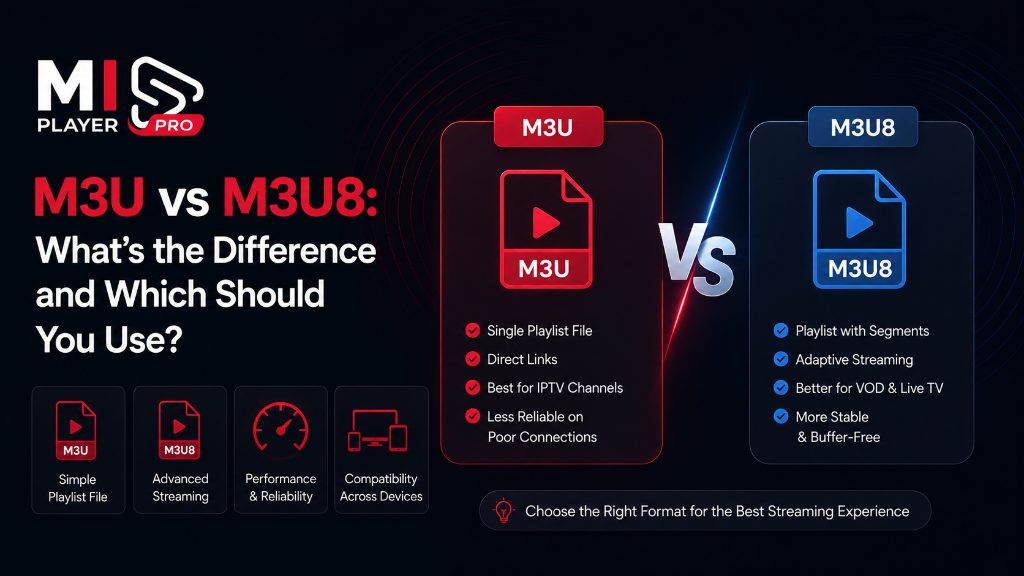
If you're wondering how .m3u differs from .m3u8, that's a file-format question — our M3U vs M3U8 guide covers it in detail. Choosing between a login and a link is a different decision, and that's what the rest of this post is for.
Xtream Codes vs M3U: Pros and Cons at a Glance
Both are standard, supported ways to connect the playlist you already have — neither is 'the wrong one'. The differences that actually matter are below.
| Feature | Xtream Codes login | M3U link |
|---|---|---|
| What your provider gives you | A server URL, a username and a password | One long URL, often ending in .m3u, .m3u8 or get.php |
| What you type with a TV remote | Three short fields — much easier on a remote | One long URL that's easy to mistype |
| Does it need provider support? | Yes — your provider must run an Xtream Codes server | No — any provider that sends you a link works |
| How widely it works in other apps | Most player apps support it | Works almost everywhere |
| How channels and categories arrive | Usually tidy — categories come straight from the provider's server | Depends on the file — some arrive neatly grouped, others as one long list |
The honest trade-off: an Xtream login is easier to type and usually keeps channels neatly organised, but it needs your provider's support. An M3U link works almost everywhere, but it's long, and one wrong character means it won't load.
Which One Should You Use?
My provider sent a username and password
Use the Xtream Codes login. Enter the server URL, username and password in the login fields and you're set.
My provider sent a long link
Add it as an M3U playlist. Paste the full link — don't retype it — and let the app load it.
They sent me both
Try the Xtream login first for tidier categories. Keep the M3U link as a backup for testing in other apps.
Whichever you pick, you're not locked in. Mi Player plays both formats, and you can add unlimited playlists — try one, keep the other as a backup, or switch later.
How to Add Each One in MiPlayer
Both take about a minute. The only real difference is what you enter: three short fields for Xtream Codes, one pasted link for M3U.
Add an Xtream Codes login
4 steps- Open Mi Player and go to the playlist screen.
- Pick the login option — the one that asks for a server URL, username and password rather than a single link.
- Enter the server URL (host), username and password exactly as your provider sent them.
- Save, then give the app a moment to pull in your live TV, movies and series from your playlist.
Add an M3U link
4 steps- Copy the full link from your provider's email or message — every character counts.
- In Mi Player, go to the playlist screen and pick the link option.
- Paste the link in rather than retyping it.
- Save, and the app downloads the playlist and builds your channel list.
Prefer no typing at all? Scan the QR code shown in the app with your phone, or add the playlist on our Manage Playlists page using your MAC address and Device Key — our MAC address and Device Key guide shows you where to find both. For every add method in one place, see the complete playlist setup guide.
Playlist Won't Load? Quick Fixes for Both Types
Most loading problems come down to one of the things below. Run through them before reinstalling anything.
- Make sure you used the matching option: login details in the login fields, the link in the link field. Mixing these up is a common reason nothing loads.
- Check the pasted URL for extra spaces, missing characters or a cut-off end — long links often get clipped when they're copied.
- Confirm your provider's server is actually up. If nothing loads in any app, the problem is on the playlist side, not the player.
- Only add playlists you have the right to watch — what you stream is your responsibility.
If you're staring at all playlists failed to load or an M3U8 timeout, our guide to fixing playlist errors works through the messages one by one. Both errors usually trace back to the playlist itself, not the app.
Try Both, Pick Your Favourite
Mi Player Pro comes with a 7-day free trial on every device — no sign-up, no credit card. Add your playlist either way and see which setup you like.