On this page
You opened your live TV section and found nothing but channel names — no titles, no times, no schedule. So what is an EPG TV guide, and why doesn't yours have one? EPG stands for Electronic Program Guide: the on-screen guide that shows what's on now, what's next and what's on later on each channel. This post explains it in plain English, shows where the schedule data really comes from, and helps you work out whether an empty or wrong guide is a playlist problem or a device problem.
What Is an EPG TV Guide?
An EPG is the TV guide you see inside a streaming app: a grid or list showing each channel's programmes with titles, start times and short descriptions. If you ever had cable or satellite TV, it's the same idea as the Guide button on those old boxes — press it and tonight's schedule appears. The distinction to hold onto from the start: a playlist delivers the channels and streams, while the EPG only describes them. The guide tells you what's on; the playlist is what actually plays.
What Does an EPG Look Like on Screen?
The classic version is a grid. Channels run down the left side, times run across the top, and every box holds a programme title — select one with your remote and you usually get a short description underneath. Up and down moves you between channels; left and right moves you through the hours.
Many players also show a smaller version when there's no room for a full grid: a 'now and next' line under the video with the current programme and the one coming up. However it's drawn, the titles and descriptions come from the guide data your playlist carries. The app only paints them on screen.
What Is XMLTV? The Format Behind Most TV Guides
Guide data usually travels in a format called XMLTV — a widely used open file format built for TV listings. It usually arrives as an .xml file, sometimes compressed as .xml.gz. One entry contains the channel name, a programme title, a start and end time and a short description: everything a guide needs to build its grid.
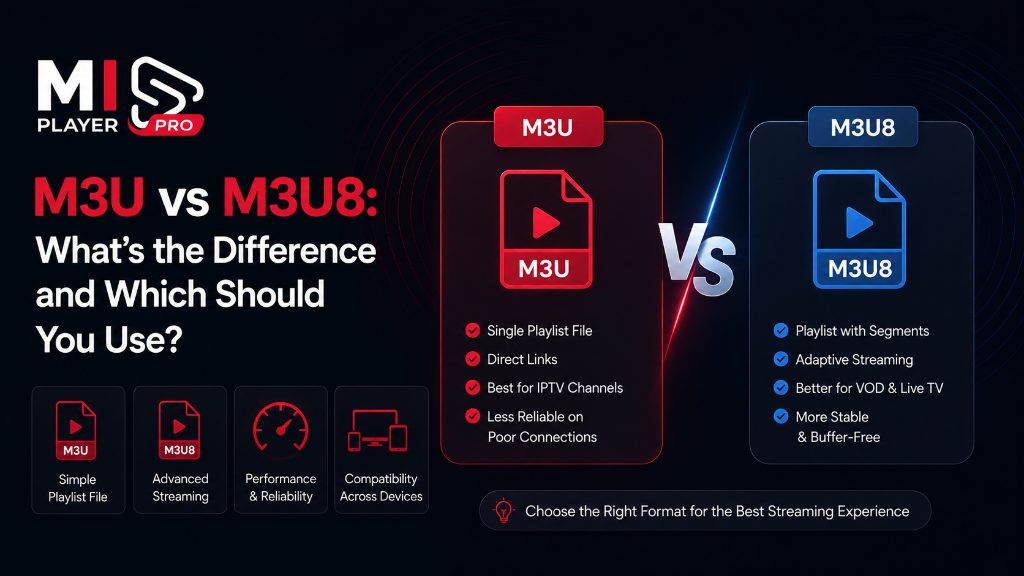
If you've read our M3U vs M3U8 comparison, here's the companion idea: M3U and M3U8 say what to play, while XMLTV says what's on when. You never have to open either file yourself. The player reads them in the background and turns what it finds into the guide you scroll through.
Where Does EPG Data Come From?
Here's the short answer to the whole post: guide data comes from your playlist provider, not from the player app. An app can only display the schedule it's given — it can't invent listings for channels it has no data for. If your guide is empty, your app never received guide data — most often because the provider doesn't send it.
There are two common delivery routes. With an M3U link, the guide usually arrives as a separate XMLTV URL that travels alongside the playlist, and your app fetches both. With Xtream Codes, the provider's server sends channels and guide data together in one connection. Our Xtream Codes vs M3U guide explains how those two playlist types differ.
That's true of every player: whichever app you use, the guide on screen is only ever as complete as the data your provider sends.
Do You Need an EPG to Watch Anything?
No — the playlist is what plays, and the guide only adds titles and times. Without guide data you lose the schedule browsing, not the viewing itself.
| Aspect | Playlist | TV guide (EPG) |
|---|---|---|
| What it holds | Channels and streams | Schedules and descriptions |
| Where it comes from | Your provider | Your provider — usually as XMLTV |
| Life without it | A plain channel list that still plays | You browse by name instead of by time |
A playlist with no guide data still plays live TV, movies and series — you just pick things by channel name instead of by what's on at 8pm. Still setting up? Our step-by-step guide to adding an M3U playlist covers the whole process.
Why Is Your EPG Empty, Wrong or Out of Time?
Now you know where guide data comes from, you can tell a provider problem from a device problem. These are the usual causes, roughly in order of how often they turn out to be the culprit.
- Your provider doesn't send guide data for some or all channels — the most common reason for a completely empty guide.
- Your device timezone is wrong, which shifts every programme time by the same few hours.
- The provider's guide source is mid-refresh or temporarily down, so listings vanish for a while.
- The app needs a refresh after you first add a playlist before the guide appears.
- The provider's guide feed is incomplete for some channels, so only part of the listings arrive.
The timezone is the one cause that sits on your device rather than with the provider. If every listing is off by the same few hours, open your TV or stick's settings and set the time and timezone to automatic. And keep the problems separate: no guide data at all points to your provider, while shifted times or partial listings are worth fixing in your own setup first.
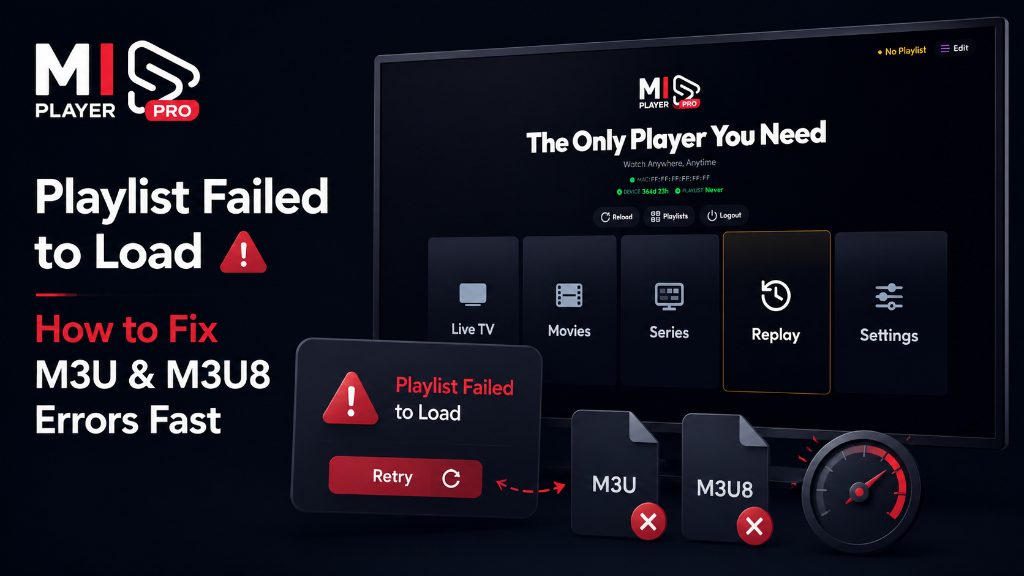
One thing this isn't: a playlist that won't load at all is a different issue from a missing guide. If your channels themselves fail to load, start with our playlist failed to load fixes.
Put Your Playlist on Your TV
The one-line recap: the playlist plays, the guide describes, and both come from your provider. Once you have a playlist you're happy with, you just need a player that shows it well on a TV screen. MiPlayer plays live TV, movies and series from an M3U, M3U8 or Xtream Codes playlist you already have, with a clean interface designed for TV remotes, unlimited playlists and no data collection or tracking.
You can add a playlist by scanning a QR code in the app, or on the Manage Playlists page using your device's MAC address and Device Key. However you add it, the channels — and any schedule data — come from your provider's playlist, not from the app itself.
Try MiPlayer Free for 7 Days
Your free trial starts automatically the first time you open the app — no sign-up and no credit card. After that, lifetime activation is €8.99 once per device, with all future updates included.