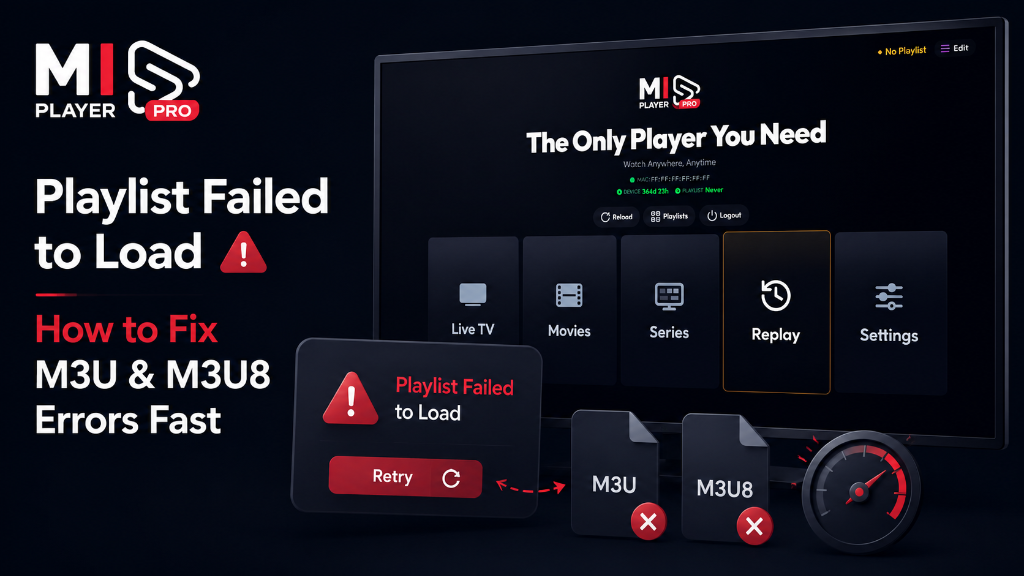
A "Playlist Failed to Load" error is frustrating — but it almost always has a clear cause and a clear fix. Let's walk through the diagnostic process from most likely to least likely cause.
Step 1: Verify Your Playlist URL
Copy your playlist URL and paste it directly into a web browser on your phone or laptop. If the browser starts downloading a file, your URL is valid. If you see an error page or "404 Not Found," the URL is broken — contact your streaming service provider for a fresh link.
Step 2: Check for Typos
Manually typed URLs are a common source of errors. A single wrong character — a space, a missing slash, a wrong port number — breaks the entire link. When in doubt, ask your provider to send the link directly and copy-paste it rather than typing it manually.
Step 3: Check Your Internet Connection
The playlist file itself needs to be downloaded before your content can start. If your internet connection is unstable or too slow even to download the small playlist file, you'll see a loading error. Try switching to a different Wi-Fi network, or connect via Ethernet cable.
Reset Your Playlist in Mi Player
- 1Visit miplayertv.com in a browser.
- 2Log in using your MAC ID and Device Key.
- 3Go to "Manage Playlist" and click "Reset".
- 4Re-enter your fresh playlist URL.
- 5Restart the Mi Player app on your device.
Step 4: Test with a Demo Playlist
Mi Player provides a demo playlist to help with testing. Load the demo — if it works but your provider's playlist does not, the issue is 100% with your provider's URL. Contact them and request a replacement link or server migration.