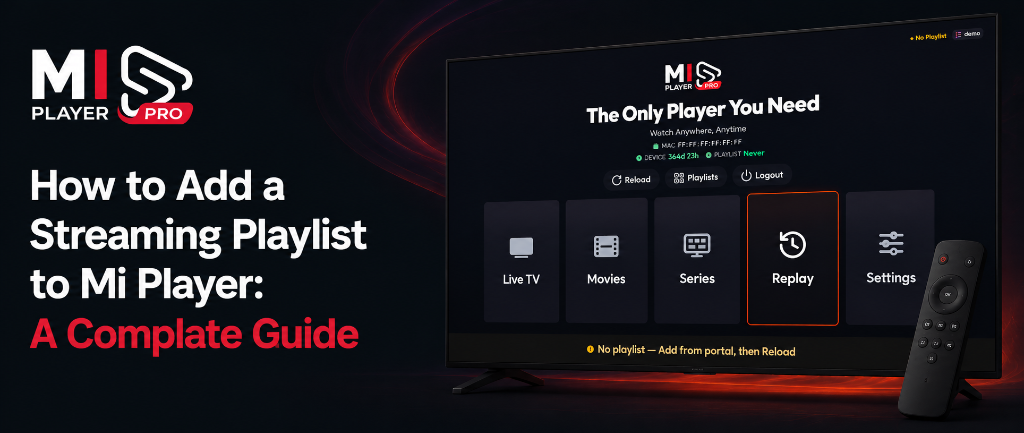
Mi Player is a premium media player — it plays your streaming content, but you provide the playlist. Once you have an M3U or M3U8 link from your streaming service provider, adding it to Mi Player is straightforward. Follow the steps below to get your content loading in minutes.
What You'll Need Before You Start
- A valid M3U or M3U8 URL from your streaming service provider (usually starts with
http://orhttps://) - Mi Player installed and open on your device
- Your device's MAC address (shown on the Mi Player home screen)
- Your Mi Player Device Key (also on the home screen)
Adding Your Playlist via the Dashboard
- 1Visit miplayertv.com on any browser (phone, laptop, or tablet).
- 2Navigate to "Manage Playlist" in the menu.
- 3Enter your MAC ID and Device Key from the Mi Player home screen.
- 4Paste your M3U or M3U8 URL into the playlist field. Make sure it starts with
http://. - 5Click "Save" or "Apply".
- 6Return to your device, open Mi Player, and restart the app to load your content.
Important: Make sure the playlist URL is complete and working. You can test it by pasting it into a browser — if it starts downloading a file, it's valid. If the page shows an error, contact your streaming service provider for an updated link.
Why Is My Playlist Not Loading?
If your content doesn't appear after adding the playlist and restarting, here are the most common reasons: 1) The URL is incorrect or has expired — contact your provider. 2) Your internet connection dropped during the refresh. 3) The playlist URL contains special characters — double-check for any typos when copying it.
Need a Subscription First?
Activate your device with a flexible plan starting from just $5/month.
View Plans